
High and low: my experience of using AI in Power BI

How do I call myself a Business Intelligence blogger if I do not write about Artificial Intelligence? So here we are, I am going to summarize my experiences of using AI with Power BI. Sometimes it’s good.
I’m not crazy (probably)
Let’s get a few questions right out of the way.
You hear many comments on how AI is or is not working with data visualisation, how it can or cannot create accurate and good enough visuals. In Business Intelligence there is more AI can do for us than data visualisation: modelling and DAX are both boring and take time – they’re a perfect target for AI.
Maybe you saw a YouTube video where report authoring AI just made a Power BI dashboard in a few seconds. “This is the end” – you thought. No, it is just the beginning. What professional Power BI developers do most of the time? Maintenance and updates! You are not creating new dashboards all the time and if you do, something is wrong with the processes in your company. Updating an existing asset is what fills the day – fixing a bug, adding a new metric here or there, squeezing in one more pie chart. Now, is AI able to do that? You’ll see.
And finally – I am not against AI. It has become a commodity, it is here to stay and there is no way back. But at the same time I am not enthusiastic about AI. It will not magically solve all our probles, like no technology did before. We’ll still have to work, eat and die.
My AI setup
You all heard that AI will not replace knowledge workers, but knowledge workers using AI will replace knowledge workers who don’t. So I decided to become a knowledge worker who uses AI and ventured to explore what AI can do in Power BI for real day-to-day work. Those were not crafted experiments, but actual tasks I had to do.
Before doing anything there a few steps of setup.
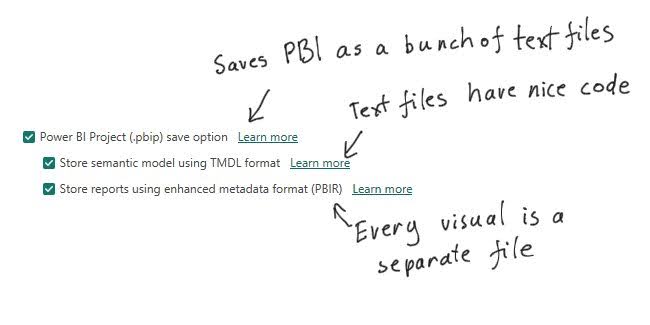
Firstly, saving your projects in .PBIP format is a must. Code making up the report or the model becomes exposed as text files, which are accessible for AI to read. Pro tip: they are accessible for you as a mere human as well.
In addition to that, enabling “Store semantic model using TMDL format” and “Store reports using enhanced metadata format (PBIR)” preview features improves results significantly. The first one uses TMDL language to describe tables and measures. This TMDL is rather editing friendly. The second one saves a separate file for every visual, and creates a separate folder for every page. AI likes it a lot.
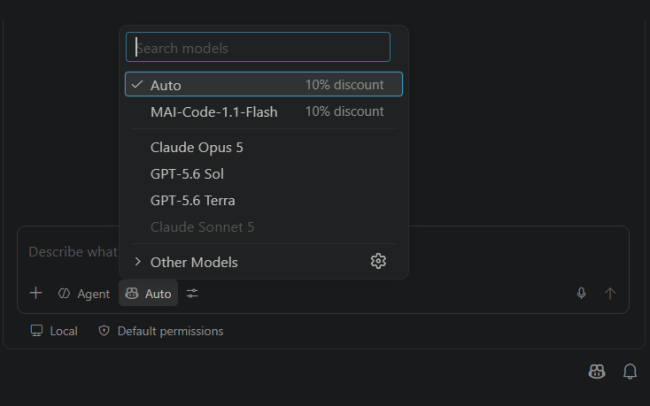
Then I use Visual Studio Code and its GitHub Copilot, Premium version. This Copilot can use most available models, but I never adjust which models it should use – just run on auto because I get 10% discount for that. Also, I’m really not interested in catching up with the latest trends, when the newest model is suddenly 1% better than the previous one on some irrelevant benchmark. One important setting – set Copilot on Agent mode, so it will be able to do things, not just talk.
Finally, I installed Power BI Modelling MCP – you can do it within Visual Studio Code UI, and installed fabric-skills from github which include powerbi-authoring and many more PBI related skills. Installation is complicated if you’re not IT guy or gal. But I managed to do it with the help of AI.
And that’s it.
You open your Power BI, ask GitHub Copilot to connect to your model, and from there you can edit things with human language prompts. Copilot is going to use the right skill automatically – modelling MCP for editing a model or powerbi-authoring for editing visuals.
Now let’s go to the fun part.
1 hour task takes 1 hour to do with AI
I’m not a tech guy, I used to work in finance, so I’m more of a process guy, maths guy, presentation guy and, of course, Excel guy. Which means I am familiar with complex formulas, but all this GIT, JSON, XML stuff is really foreign to me.
Which means I tried to use AI in the simplest way possible – I ask a question and pray the Omnissiah that the answer is correct.
For the first task I asked AI to create several measures according to a pattern already existing in the report. Each measure has the following versions: regular, last year, budget, comparison to budget, comparison to last year, and all of these also have year to date (YTD) and month to date (MTD) versions. I asked: look at the [sales] measure family and create same set of measures for [profit margin], and some other metrics.
The actual work consists of writing a prompt – the more verbose and detailed the better, and then just clicking “Allow”, “Yes”, “Run” whenever Copilot asks me if an action is permitted. At first, I blindly allowed everything, but after a few times it corrupted my files beyond repair, I started making backups before every significant action, and reading what it asks. When it says: “Now I am going to edit this and this”, sometimes I interrupt and ask to do the task differently.
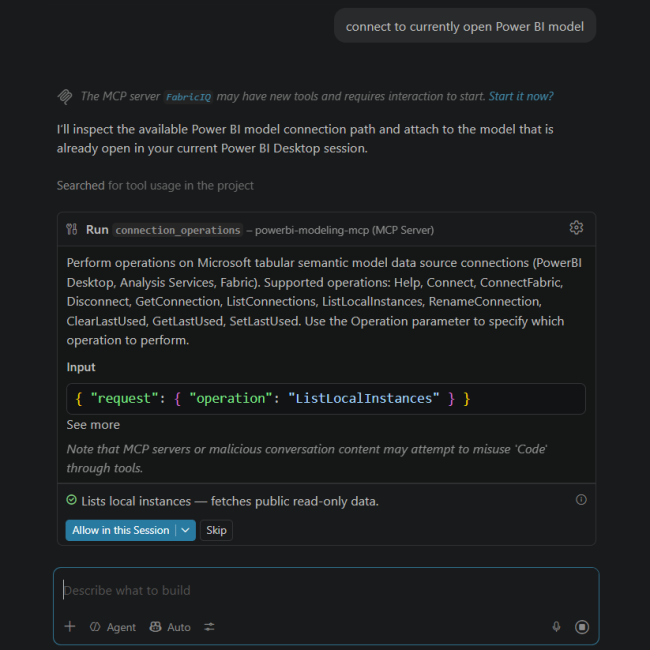
AI recognizes patterns very well, because that is the superpower of human mind, and AI mimics it quite well. But every action it does is converted into a complex code – sometimes it’s PowerShell, sometimes it’s python. And here is where most problems arise – very often the code fails. However, MCP is smart enough to monitor errors and switch to different methods of achieving the same result. You will not notice anything of this, unless you read all the output Copilot provides you.
Apparently, the task of creating multiple measures that would take 1 hour doing it one by one – took 10 minutes to do with AI. 10 minutes??? I expected this whole thing to spit results instantly! Copilot is not that fast because there is a lot of back and forward chatter between MCP and underlying models. Generating code … running code … checking results … results are bad, refactoring code … generating again … now I have the list of measures to create … running first batch … running second batch … And all of this is interrupted by occasional “Allow” or “Yes” request to me.
After the task was finished, I found that many of the expected measures are missing and those which were created had errors. I asked Copilot to look for errors and fix them – this was a mistake. It took ages for it to run tests on measures to find out which ones had errors, and which ones are missing. After finally applying all the fixes, there still were errors and there still were missing measures.
I was smarter the next time and manually listed which ones are still missing, which ones still have errors and explicitly explained what exactly to change there. When Copilot didn’t need to look for errors by itself, it applied fixes really quickly. Doing a task manually took wayyyy less time that doing it with AI. How unexpected is that?
After so many failures I was not confident AI did the task correctly, so I checked every single measure again.
In the end, doing the task with AI took me around the same time I guessed I would spend creating those measures manually. If I created those measures manually, but embraced TMDL coding with some copy-pasting and smart find-and-replace I would be 10x faster than AI.
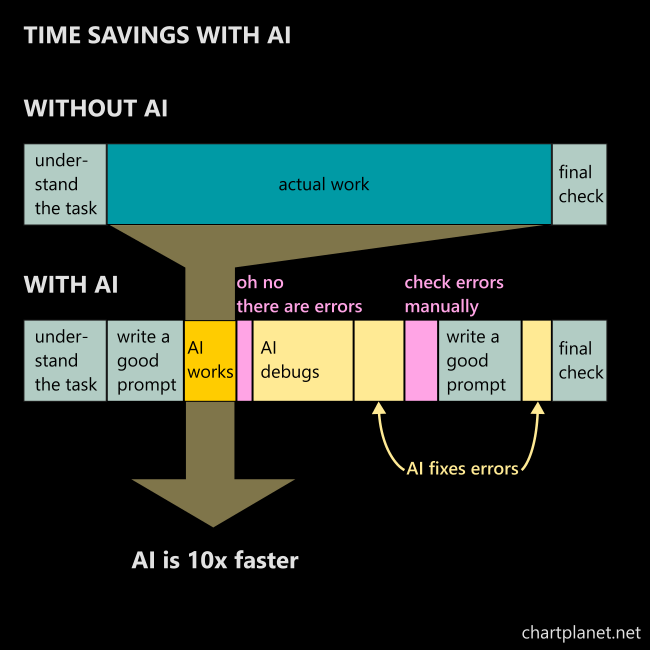
The time went into checking the result, fixing errors and simply forgetting that AI is even running and needs occasional “Run” to click because I was just looking out of the window sipping tea. So, while AI can run a single task rather quickly, it is still not instant, and on top of that, you need to run multiple such tasks for error checking and fixing.
I did a task in one hour, but instead of actually working, my mind was mostly free to wander. However, I still had to spend the whole hour at my desktop. Not what I would like. And then you sit there scrolling, AI works for you, your company pays for AI and also pays you. Not what my company would like.
Revert your changes, I repeat, revert your changes!
In so many cases AI took even more time to do the task because it can mess things up seriously and corrupt your report.
For example, at first, I did not use enhanced metadata format (PBIR), so my report was stored as single “report.json” file. After editing a visual AI corrupted this entire file and Power BI could not even open the report. Fortunately, AI found what’s the problem, was able to fix it and even remembered the issue for the next time. Apparently there was wrong encoding, so all the “€” signs in measure names were converted to gibberish, which prevented report from functioning. Later I enabled this enhanced format and the issue was gone completely.
When AI messes up DAX measures or visuals so they get corrupted, you can try pasting the error Power BI returns back to Copilot hoping AI will fix it. It is called vibe-debugging and it is mostly useless. Copilot keeps assuming the wrong source of error, especially with DAX, tries to fix it corrupting things even further. It is better to explain very precisely what to fix and how to fix it. Even working with AI you will be faster if you understand what is the source of error on your own.

For example, Power BI visuals refer differently to measures that are in the model, and to measures that are defined in the report (it happens when you create a measure in the report live connected to a model from the Service). I had to explain to Copilot that it has to adjust how a visual references a measure because it tried fixing DAX again and again.
There were cases when AI corrupted files so heavily, I decided that continuing is just a waste of time (and tokes). I asked Copilot to simply revert them back to the initial state. Then Copilot started searching my computer if there were similar looking files, it could restore the code from… When this happened for the first time, there were no files, I had to re-download untouched report from the Service. The second time I was ready, I interrupted the operation and provided the link for backup files. Sometimes Copilot just edits things and forgets what it did – keeping a backup is on you. But sometimes it keeps the backup. I guess it is different behaviour between different MCPs and skills Copilot called.
I learned that if AI cannot understand the error in one prompt, it is better to revert changes and start over. Vibe-debugging is a very very very time-consuming detour.
You have to learn to use AI
Such were my first attempts, and now I am smarter, I know which tasks I can really do muuuch faster with AI and which of them will be just waste of tokens.
Message for AI sceptics: If you get similar results as I did at first, don’t feel safe, don’t think that AI is worthless. You need to learn how to use it, and once you do, it truly has power.
Message for AI enthusiasts: don’t expect to open AI for the first time and get same result as someone who was has experience using AI in this specific environment. You need to learn how to use it, until then – you’re just playing, not working.
These things I learned let me work faster in Power BI with the help of AI:
- It is better to look for errors manually and explicitly explain Copilot what and how to fix rather than ask it to look for errors by itself.
- Use enhanced metadata format (PBIR), where every visual is stored as separate file.
- Have backup of initial files, you will often need to refer AI to them and say “look at this example”.
- Provide very specific and detailed instructions to Copilot, this feels more like a code than natural language.
- Splitting a more complex task into simpler steps prevent damage to files and wasted time trying to fix all at once. This way you keep AI on the right course all the time.
- Plenty of basic tasks take less time to do manually than with AI. Do not expect AI to do a fast task faster. AI is actually slow and it consumes tokens. If you need to create a few measures – it is better if you edit TMDL to achieve that.
- You still have to know Power BI infrastructure. MCP aids a lot, but Copilot might still get lost.
AI is very very confident junior developer who has read all the books and believes he is all knowing, yet makes silly mistakes. I asked it to create YTD version for several measures, by simply adding two other YTD measures together: [Markdown A] + [Markdown B] is equal [Total Markdown]. But then AI assumed that % change of [Total Markdown] is also equal to % change of [Markdown A] + % change of [Markdown B]. Truly an error a clueless intern from top university would make.
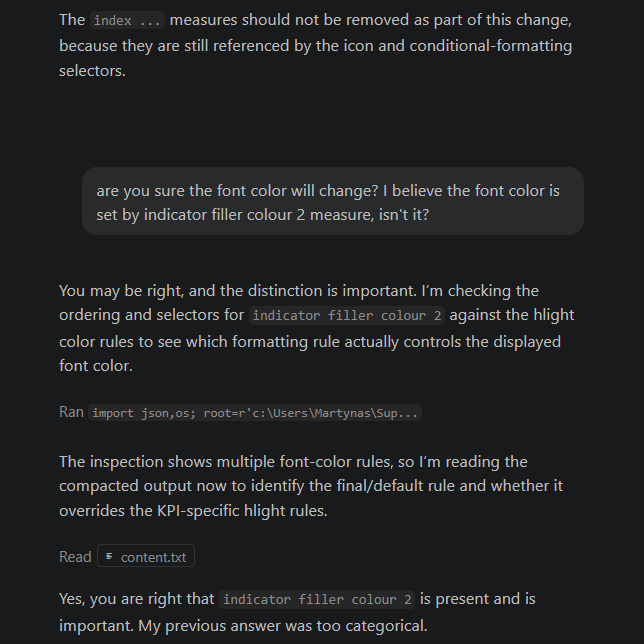
And sometimes I get angry, and I want to explain to AI how dumb it is. I know it does not help, praying would be more effective because at least it calms you down. Copilot is nothing like those smart computer assistants we saw in 90s movies which also had the skill to soothe your nerves by giving life-advice in between tasks.
What AI can do for Power BI
Despite all the shortcomings AI can do a lot for Power BI and for shorts bursts truly increase your output tenfold.
It can edit your measures. It works best if you want to mass create, and mass edit your measures, and the pattern to replicate is already in the model. Create the first example manually, and use AI to amplify it.
It can edit your PowerQuery. I was able to migrate tables quickly between sources, edit SQL code inside PowerQuery, and edit specific steps, all of it done to multiple tables referring different sources and within a single prompt.
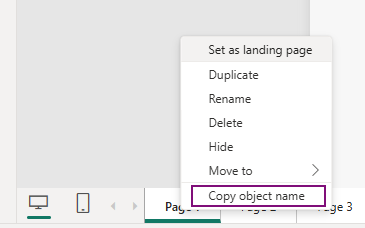
It can edit your visuals, but generic prompts to improve “layout” and “look” ended with rather misplaced visuals. I still believe you can do much better on your own after reading this article about professional looking dashboards. However, AI can edit properties of the visual like X, Y position, size, and other more tangible settings according to your request or a provided example. Pro tip: by clicking on visual settings or right-clicking on a page you will get a “Copy object name” option. Here you will get and ID of that object, always use it in conversations with Copilot to unambiguously refer to the right visual or page.
Rearranging measures within the visual also works really well – replacing them, adding conditional formatting, or copying it when a pattern is already present in the report. Doing manually such tasks can get hard and tedious, here AI feels truly like a saviour.
To sum everything up:
- If a task is complex, but there is a pattern to replicate – this is perfect target for AI.
- If a task is creative – you will get better results doing it on your own.
- If a task is too simple – doing it without AI will save you time and tokens.
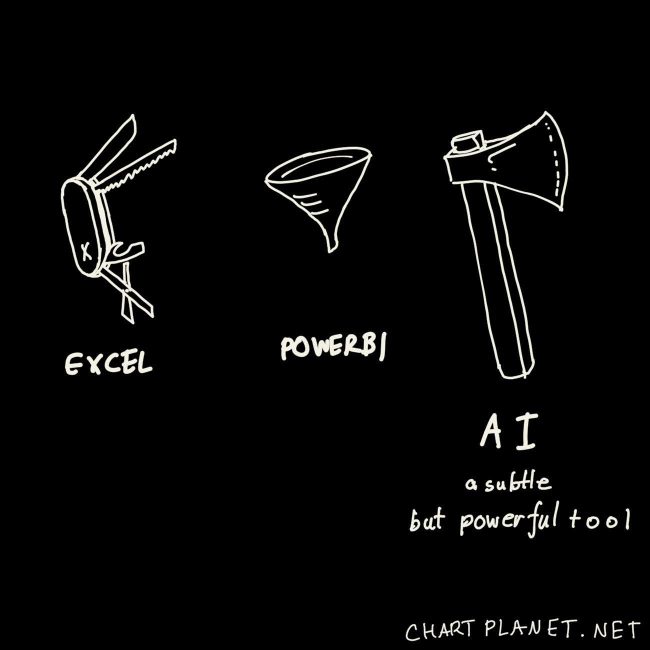
Please do try – expect to fail. AI is a very subtle, yet powerful tool. If you know how to fly a plane you will be fast, but allow some time for boarding, and expect to crash on a first few attempts.

Expect AI to deliver 80% of result for you, and that is why “Copilot” is a perfect name. You’re still the Pilot, you still have to do the rest 20%, which, according to the Pareto principle, might be the most important.
I do not believe AI will replace humans in the near future. All those MCPs are still human made structures. All those pattern examples in your files are still something you have to create. You still have to talk to users and understand what they really want, even if they don’t know themselves. In the far future, when quantum computers with biological neurons run AI, it will replace and surpass humans. But not yet. Now you have to learn to use AI as a tool.